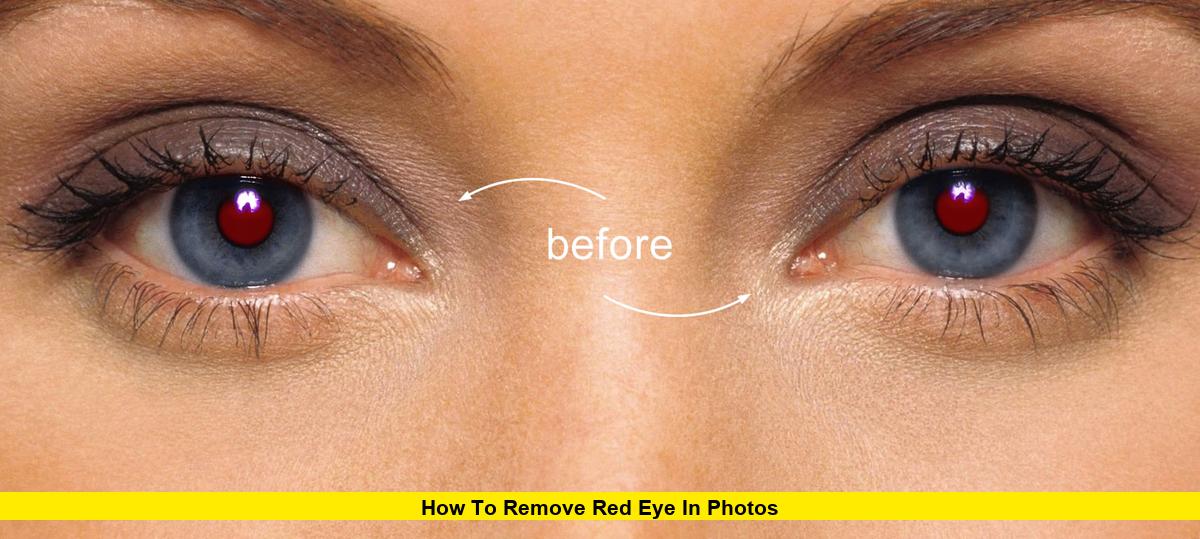
Nothing ruins a great photo faster than that eerie red glow staring back from your subject’s eyes. Whether it’s a birthday party snap, a family portrait, or a candid shot of your pet, red eye can turn an otherwise perfect picture into something straight out of a horror movie. The good news? Fixing it takes just seconds with the right tool, and you don’t need to be a professional photographer to do it.
This guide breaks down exactly what causes red eye, the fastest ways to fix it on your phone or computer, and how to prevent it from happening in the first place.
What Causes Red Eye in Photos?
Red eye happens when a camera’s flash fires directly into a subject’s pupils and bounces back off the blood vessels lining the retina at the back of the eye. Instead of reflecting the natural black or dark color of the pupil, the light reflects the red tones of those blood vessels, giving eyes that unnatural, glowing red appearance.
This effect is most common in:
- Low-light or dark environments, where pupils are dilated wider to let in more light
- Photos taken with the flash mounted close to the lens, such as on smartphones and point-and-shoot cameras
- Direct, straight-on flash shots, especially of people or pets facing the camera
Pets are actually prone to a similar but slightly different effect, sometimes called “green eye” or “white eye,” caused by a reflective layer behind their retinas called the tapetum lucidum.
How to Remove Red Eye on iPhone
Apple’s built-in Photos app has a red-eye correction tool that requires no downloads.
- Open the Photos app and select the photo with red eye
- Tap Edit in the top right corner
- Tap the eye icon (red-eye tool) in the editing toolbar
- Tap directly on each red pupil in the photo
- The app will automatically detect and correct the red tone
- Tap Done to save your changes
This built-in tool works well for simple, single-subject photos, but it can struggle with group shots or eyes at odd angles. For those situations, a dedicated app usually does a better job.
How to Remove Red Eye on Android
Most Android devices, including phones from Samsung and Google, include red-eye correction inside their default gallery or Google Photos app.
- Open Google Photos and select the image
- Tap Edit, then look for the Tools or Retouch section
- Select the red-eye removal option if available
- Tap on the affected eyes to apply the fix
- Save the edited photo
If your device’s gallery doesn’t include this feature, a third-party app will fill the gap easily.
Best Apps and Tools to Fix Red Eye Automatically
If you want faster, more consistent results, especially for group photos, pets, or older scanned pictures, these tools are worth trying:
- Adobe Photoshop Express – A trusted, all-in-one mobile editor with a dedicated red-eye tool alongside broader color and exposure correction features.
- Fotor – A browser-based and app editor that lets you click directly on the red-eye area, adjust brush size, and fix it in seconds without installing software.
- Picsart – Offers an AI-powered one-tap red-eye fix along with wider retouching tools for portraits.
- YouCam Makeup – Uses AI to automatically detect and correct red eye on both people and pets, and even offers pet-specific red-eye handling.
- BeautyPlus – A popular retouching app with a simple red-eye correction feature built into its broader beauty and portrait editing suite.
- Pixlr – A flexible free editor with manual and automatic red-eye tools plus collage and filter options.
Most of these apps follow the same basic workflow: upload your photo, tap or circle the red-eye area, and let the AI handle the correction automatically.
How to Fix Red Eye in Photoshop (Desktop Method)
For more precise control, especially on higher-resolution or professional images, Adobe Photoshop’s desktop version offers a dedicated Red Eye Tool:
- Open your image in Photoshop
- Select the Red Eye Tool (usually grouped with the Spot Healing Brush in the toolbar)
- Click and drag a box around the red portion of the eye
- Photoshop will automatically replace the red with a natural dark tone
- Adjust the Pupil Size and Darken Amount sliders in the options bar if the correction looks too strong or too weak
- Save or export your corrected image
This method gives you the most control if you’re editing high-quality portraits or need the retouch to blend seamlessly with skin tones and lighting.
How to Prevent Red Eye Before You Even Take the Photo
Fixing red eye after the fact is easy, but avoiding it altogether saves time. Try these tips next time you’re shooting with flash:
- Turn on your camera’s red-eye reduction setting, which fires a quick pre-flash to shrink the subject’s pupils before the actual photo is taken
- Increase the room lighting so pupils naturally constrict before you shoot
- Ask your subject to look slightly away from the lens rather than straight into it
- Move the flash away from the lens axis, which is why external or bounce flashes rarely cause red eye
- Use natural or ambient light instead of flash whenever possible
Red Eye Removal for Pet Photos
Pets don’t get red eye the same way humans do; instead, flash often produces a green, yellow, or white glow due to the tapetum lucidum layer behind their eyes. Many of the apps mentioned above, including YouCam Makeup and Fotor, include pet-specific red-eye or “glow-eye” correction modes that are trained to recognize animal eye shapes and colors, so you don’t have to rely on a tool built only for human faces.
Quick Recap: Fastest Ways to Remove Red Eye
| Method | Best For | Skill Level |
|---|---|---|
| iPhone Photos app | Quick single-subject fixes | Beginner |
| Google Photos | Android users, quick fixes | Beginner |
| Fotor / Picsart | Group photos, browser editing | Beginner |
| YouCam Makeup / BeautyPlus | AI-powered fixes, pets included | Beginner |
| Adobe Photoshop (desktop) | Professional-level precision | Intermediate/Advanced |
Red eye is one of the most common photo flaws, but thanks to today’s AI-powered editing tools, it’s also one of the easiest to fix. Whether you prefer a one-tap mobile app or full manual control in Photoshop, you can have those glowing red pupils looking natural again in under a minute.
Got a favorite red-eye fix or an app that worked wonders on your photos? Drop a comment below and let us know, and stay tuned for more quick photo-editing tips!